
The fastest way to improve SEO on your Shopify store is to fix the work Shopify leaves to you: duplicate product URLs created by collection links, collection pages with no copy, supplier product descriptions, apps that slow the storefront down, and redirects nobody set up. Shopify handles the plumbing well. The pages, the copy and the structure are yours.
That split is the idea behind this Shopify SEO guide. The platform gives every store a working sitemap, a sensible robots.txt file and clean templates out of the box, so part of the classic technical checklist is done before you open the theme editor. What it can’t do is decide which page should rank for which search, write a collection intro that answers a shopper’s question, or notice that an app you removed months ago may still be loading code. Those are the places to look first in any Shopify audit, and they are where the 15 Shopify SEO tips below come from. They are also the core of what our Shopify SEO services cover, but every tip here is something you can do yourself.
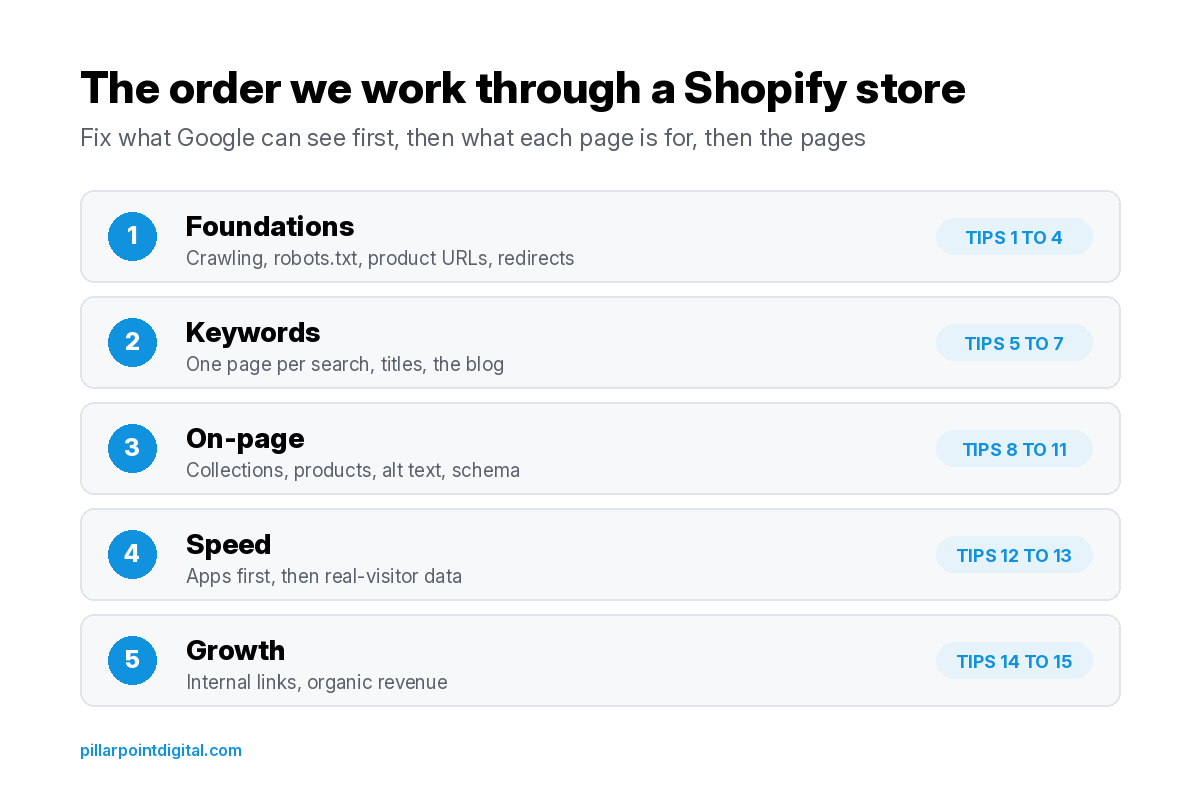
The tips run in the order we would work through them on a real store: make sure Google can see you, decide what each page should rank for, fix the pages, then speed, then links and measurement. If you are wondering how to do SEO on Shopify from scratch, go top to bottom and treat it as Shopify SEO for beginners. If you have done the basics, jump to the section that matches your problem.
What does Shopify handle for you, and what doesn’t it?
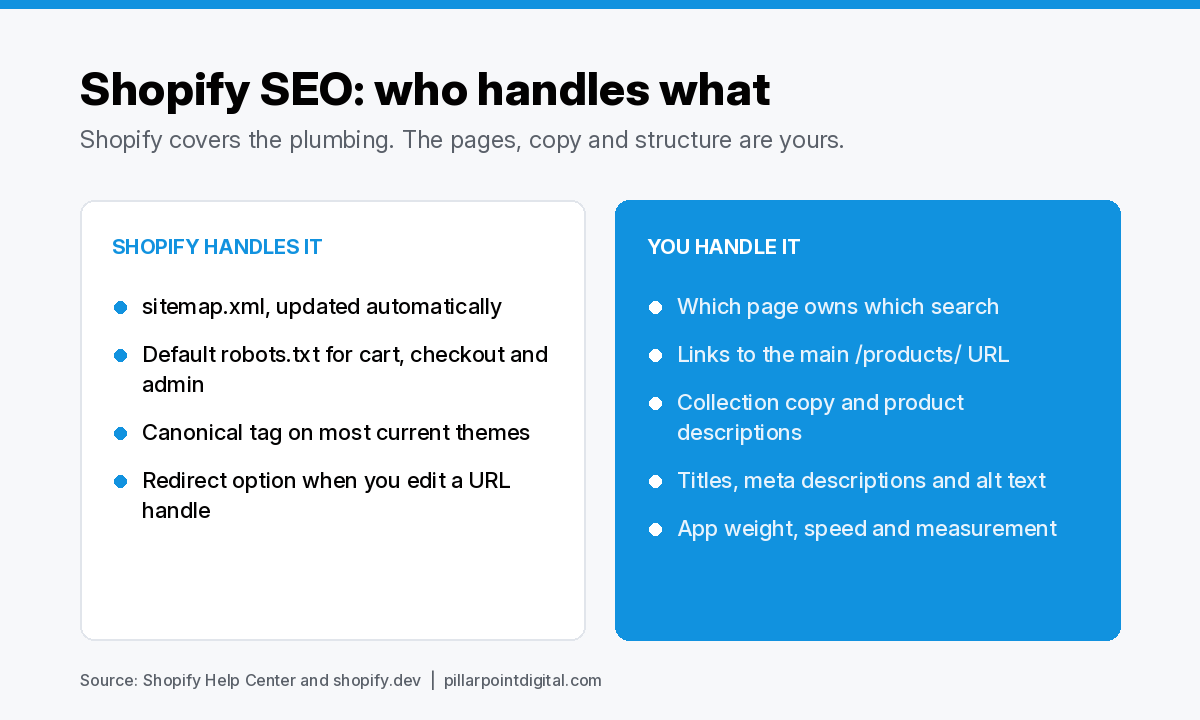
Shopify does a fair amount of SEO groundwork automatically, so don’t spend a weekend redoing it. According to Shopify’s help center, every store generates a sitemap.xml file that links to separate sitemaps for products, collections, blogs and pages, and updates itself when you add content. Every store also ships with a default robots.txt that keeps crawlers out of the cart, checkout, account and admin areas.
Here is what Shopify leaves to you:
- URL structure. Products sit under
/products/, collections under/collections/, pages under/pages/and blog posts under/blogs/. You can edit the handle at the end of each URL, but not those folder names. - Duplicate paths. A product can load at its own URL and at a collection version of it. Shopify’s developer documentation notes the two have the same content on separate URLs and tells theme developers to consider the SEO implications.
- Content. Collection pages often launch as a bare product grid, and product pages with the supplier’s description.
- Apps and theme weight. Each app you install can add code to your storefront.
So is Shopify good for SEO? For most stores, yes. Every gap above can be fixed without leaving Shopify.
Foundations: can Google find and trust your store?
Everything else depends on Google crawling your store cleanly, so start here even if it feels basic.
1. Turn off password protection and connect Google Search Console
New stores often sit behind a password page while the theme gets finished. Shopify notes that Google can’t access your sitemap while the store is in private mode. Once the store is public, verify your domain in Google Search Console and submit sitemap.xml in the Sitemaps report. It is the only place you will see which searches show your pages, and tip 15 depends on it.
2. Leave robots.txt alone unless you have a specific reason
Shopify lets you customize robots.txt with a robots.txt.liquid theme template, but it calls this an unsupported customization and warns that incorrect use can result in loss of all traffic. We take that warning at face value. The default file is right for most stores, and the usual reason to change it is a specific one, such as Search Console showing large numbers of filtered collection URLs being crawled. Check your current file at yourstore.com/robots.txt and keep a copy before you touch anything.
3. Link to the main product URL, not the collection version
This is a common Shopify issue, and it is easy to miss because nothing looks broken. Open a product from one of your collection pages and look at the address bar. If it reads /collections/summer/products/linen-shirt instead of /products/linen-shirt, your theme is building collection-aware links, usually with Liquid’s within filter.
Most current themes point the canonical tag on that version back to the main product URL, which helps. But Google treats a canonical tag as a signal rather than an order, and every internal link to the collection path still sends a mixed message. A developer can usually switch product card links to the plain /products/ URL in a few lines of theme code; afterwards, view the source on one product and confirm the canonical tag and the links agree.
4. Redirect every URL you change or delete
When you edit a URL handle, Shopify shows a Create a URL redirect option that is selected by default. Leave it ticked. For anything else, go to Content > Menus in your admin and click View URL redirects, where you can add redirects one at a time or import a CSV.
One detail trips people up: Shopify only lets you redirect from broken URLs, the ones that return a 404, so a redirect from an address that still loads a live page won’t work. When you discontinue a product, point its URL at the closest replacement or its collection.
Keywords: which page should rank for what?
With the foundations in place, the next question is what each page is for. Many ranking problems on Shopify stores are planning problems in disguise.
5. Give every keyword exactly one page
A simple rule keeps a store organized. Collections target category searches (for example, “women’s trail running shoes”). Products target specific product and model searches. Blog posts answer questions (“how to waterproof trail running shoes”). When two pages chase the same search, they tend to split the signals, and neither ranks as well as one strong page would.
Keep a plain spreadsheet with three columns: keyword, the one page that owns it, and that page’s status. It stops you writing a blog post that competes with your own best collection.
6. Write your own title tags and meta descriptions
Every product, collection and page has a search engine listing section where you can edit the page title and meta description. Shopify’s guidance allows titles up to 70 characters but recommends keeping to 60 so they aren’t cut off, and recommends using 160 characters for the meta description. If you leave the title empty, your theme usually builds it from the page name and your shop name, and if you leave the description empty, Google picks a snippet from the page itself. Neither is written for the person searching.
Put the words a shopper would type near the start of the title, then the detail that sets you apart.
7. Use the blog for questions your collections can’t answer
Shopify’s built-in blog is easy to overlook, because a store can sell without it. It is the right home for sizing guides, care instructions, comparisons and “which one should I buy” questions, the searches that happen before someone is ready to browse. Each post should answer its question properly, then link to the collection or product it relates to. What it should not do is target the same category term as a collection page, which takes you straight back to tip 5.
On-page: how do you optimize Shopify collection and product pages?
Collections and products make the money, so on-page work pays back fastest here.
8. Put useful copy on every collection page
Collection pages are often the ones best placed to rank for valuable category searches, and also the ones most likely to have no words on them. Add a one- or two-sentence intro above the product grid that confirms the shopper is in the right place, and a longer section below it with buying guidance or a few common questions. Our category page SEO guide walks through the structure, and it applies to Shopify collections directly.
9. Rewrite supplier product descriptions
If you sell products other retailers also carry, the manufacturer’s description is probably on plenty of other sites, and Google has little reason to prefer your copy of it. Rewrite each description around what a shopper asks before buying: how it fits, what it’s made of, how to care for it, and who it is not right for. Start with your best sellers rather than working through the catalog alphabetically. Our product page SEO guide also covers variants and discontinued products.
10. Write alt text that describes the product
Alt text helps shoppers using screen readers and helps search engines understand your images. In Shopify, open a product, click an image and choose Add alt text. Shopify allows up to 512 characters but recommends 125 or fewer. Describe what is in the picture, such as “navy linen shirt, front view, rolled sleeves”, rather than repeating the product title or stuffing in keywords.
11. Check your product structured data
Structured data is the code that tells search engines a page is a product with a price, a stock status and, if you collect them, reviews. Many Shopify themes output it by default, but what it includes depends on the theme and any review app, and a theme and an app can each add their own version to the same page. Run one product URL through Google’s Rich Results Test and check that a single product shows with the right price and availability.
Speed: what slows a Shopify store down?
On Shopify, a slow store is usually caused by something added after launch, not the platform itself.
12. Audit your apps before you blame your theme
Every review widget, pop-up or chat bubble can load its own scripts. List your installed apps and ask whether each one still earns its place. Remove the ones you don’t use, then check your theme code for leftovers, because some older apps write code directly into theme files and that code can stay behind after you uninstall. Test key pages before and after each change.
13. Judge speed by real-visitor data, not one test
Lab speed scores move around between runs, which makes them a poor way to judge a fix. Shopify’s web performance dashboard, found on the Themes page or under Analytics > Reports, shows the three Core Web Vitals (LCP, INP and CLS) from real visitors. The data can lag by up to 36 hours and covers the last 90 days, so judge a change by the trend over a couple of weeks. Large hero images and autoplay sliders are common causes of a slow LCP.
Growth: how do you get traffic to your Shopify store from search?
Once the store is crawlable, planned and fast, growing Shopify organic traffic comes down to two habits: connecting your pages to each other and measuring what search actually earns you.
14. Link your own pages together on purpose
Internal links are how Google finds your pages and judges which ones matter most, and they are the one link source you fully control. Link from the homepage to your top collections, from collections to subcollections and best sellers, and from every blog post to the collection or product it relates to. A page nothing links to tends to get crawled less, so make sure new and seasonal collections are linked from somewhere before launch.
15. Measure organic revenue, not only traffic
Rankings and sessions are signals, not the goal. Use Search Console to see which queries and pages earn impressions and clicks, and your Shopify reports or GA4 to see which of those visits turn into orders. Once a month, look for collections gaining impressions, which tells you where to add copy and links next, and pages that get clicks but no sales, which usually means the page needs work rather than the ranking. If you increase Shopify traffic and sales don’t move, that second list is where to look.
When is it worth getting help?
You can do everything in this guide yourself, and plenty of store owners do. Outside help tends to make sense in one of three situations: a large catalog where tips 8 to 11 would take months by hand, a migration or theme rebuild where URL changes can cost you rankings if they go wrong, or simply not having the hours to keep at it.
If you would like a second pair of eyes on how to rank your Shopify store on Google, start with a free Shopify SEO audit. You keep the plan either way.
Shopify SEO FAQ
Is Shopify SEO different from regular SEO?
The principles are the same: crawlable pages, one page per search, useful content and a fast site. What changes on Shopify is the detail, such as the fixed URL folders, the duplicate collection paths some themes create, the app ecosystem and how robots.txt is edited. Most Shopify SEO optimization work is about handling those platform details well.
Do I need an SEO app for Shopify?
Not necessarily. Most of what SEO apps do, such as editing titles and meta descriptions, adding alt text and creating redirects, can be done in the Shopify admin. Apps help with bulk edits on a large catalog, but each one adds code, so weigh what it saves against what it loads.
Can I change Shopify’s URL structure?
Partly. You can change the handle at the end of any product, collection, page or blog post URL, and Shopify will offer to redirect the old one. You can’t remove or rename the /products/, /collections/, /pages/ or /blogs/ folders.
How long does Shopify SEO take to work?
It depends on the competition for your searches, your store’s history and how much needs fixing. Technical fixes can be picked up as soon as Google recrawls the pages, while rankings for competitive category searches usually build over months rather than weeks.